Stay explorer
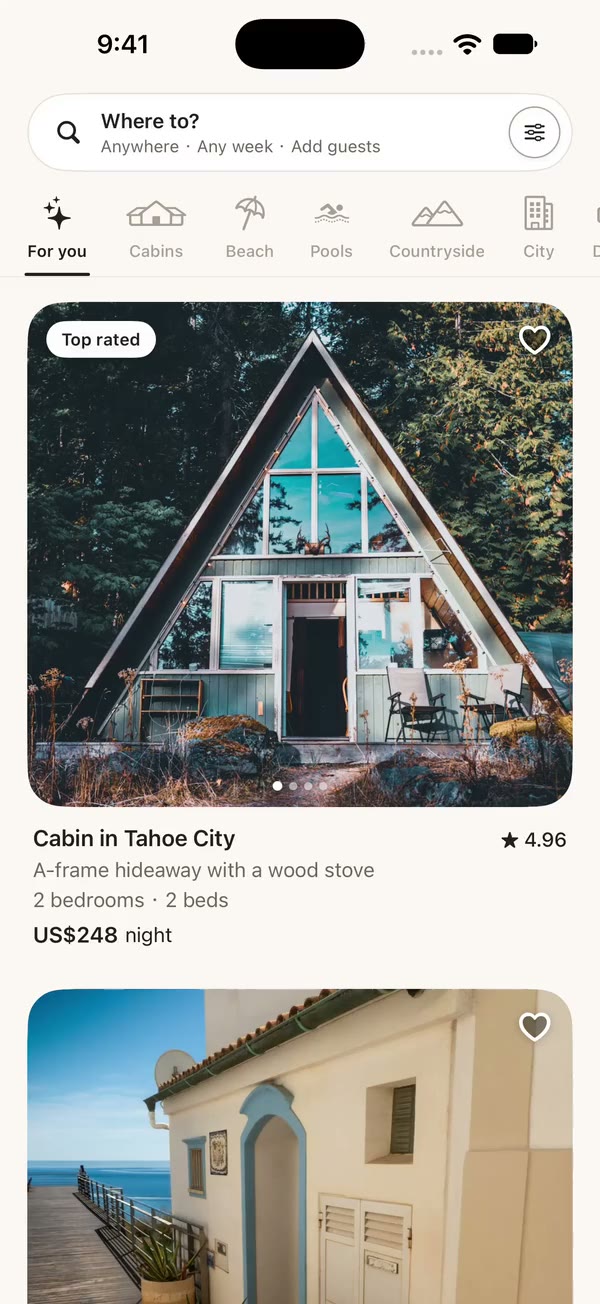
Browse places to stay: a search that opens into where, when and who, category tabs, and big listing cards whose photo zooms into the full listing.
Copies a short instruction with your private download link. Paste it into your agent: it downloads the whole skill (the source code, the setup steps and the mistakes we already made for you) and builds the screen.
Works with
What it does
Every rental, hotel, co-working or "book a place" app needs the same first screen: let people say where, when and who in a few taps, then browse large photos until one makes them stop. The parts that make it feel good are the ones an agent tends to skip: the search that grows out of the capsule you tapped, a calendar that paints a continuous range, a card whose photos swipe without opening it, and a detail page that opens on the exact photo you were looking at.
This skill is that whole loop as plain SwiftUI, with no networking, auth or persistence inside. Data comes in as value types; every side effect leaves through SWStayExplorerActions closures.
What you get:
- Explorer (
SWStayExplorerView) — pinned header with the search capsule and filter button, a horizontally scrolling category bar (the picked icon bounces and fills, one ink underline slides between tabs, the bar centers the selection), and a feed of listing cards with a result caption, first-load skeletons, an empty state with "Clear search", and a load-more sentinel. - Listing card (
SWStayCard) — photo pager with windowed page dots, save heart with a bounce and a light haptic, badge pill, "Cabin in Tahoe City" headline with rating, and a price line that adds the trip total once dates are picked. - Search (
SWStaySearchView) — full-screen cover that zooms out of the capsule. Three cards, one open at a time: destination search with suggestions, a paged month calendar with range selection and ± day chips, and guest steppers for adults, children, infants and pets. It edits a draft and reports once. - Listing detail (
SWStayDetailView) — full-bleed photo pager with a counter, a rounded sheet that overlaps it, rating strip with laurels, host row, highlights, expandable description, "Where you'll sleep" cards, amenities that expand in place, review cards, and a Reserve bar that shows the total for the picked dates. - Design system (
SWStayStyle.swift) — warm paper and ink tokens, soft two-layer shadows, button styles, and a cached image loader that also readsasset:URLs.
What you get
- ✓2,769 lines of source code, ready to paste
- ✓Architecture
- ✓Dependencies
- ✓Implementation
- ✓Usage
- ✓Integration Checklist
- ✓Common Customizations
- ✓Known Pitfalls
Architecture
State ownership. The screen owns nothing persistent. The search is a Binding<SWStaySearch> you keep in your store; the saved listings are a Set<String> changed through toggleSave. The explorer keeps only view state: the selected category, whether the header has scrolled, and which photo each card is on. That last one is shared with the detail page as a binding, so the hero opens on the photo the card was showing and the card is still on the photo you left the detail page on.
Search flow. SWStaySearchView copies the search into a draft when it opens. Nothing reaches your store until the guest taps Search: the draft is written to the binding, the feed scrolls back to the top and actions.search fires so you can fetch. Closing the cover discards the draft. Category tabs filter the stays you passed in by categoryIDs on the device; actions.selectCategory is there for apps that fetch each category from a server.
Transitions. Both openings are the system zoom transition (matchedTransitionSource + navigationTransition(.zoom)): the capsule grows into the search cover, and a card's photo grows into the detail page. They are interruptible, and the detail page keeps the back button, the edge swipe and the pull-down to dismiss.
Images. Listing photos and host avatars are URLs. While loading, offline or on failure a photo falls back to a sand placeholder and an avatar to an initial on a muted tint, so previews look right with no network. A URL can also be asset:<name> (URL(string: "asset:cabin-1")), which shows that image from your asset catalog instead of downloading it: handy for bundled sample content and App Store screenshots.
More in Main screens