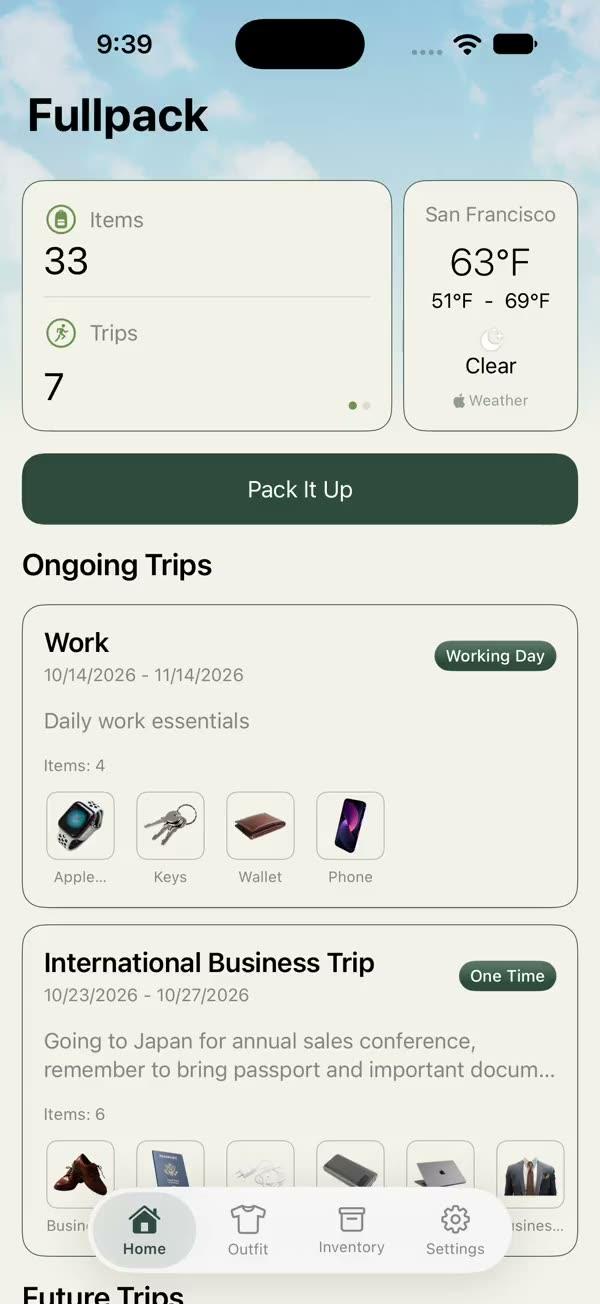
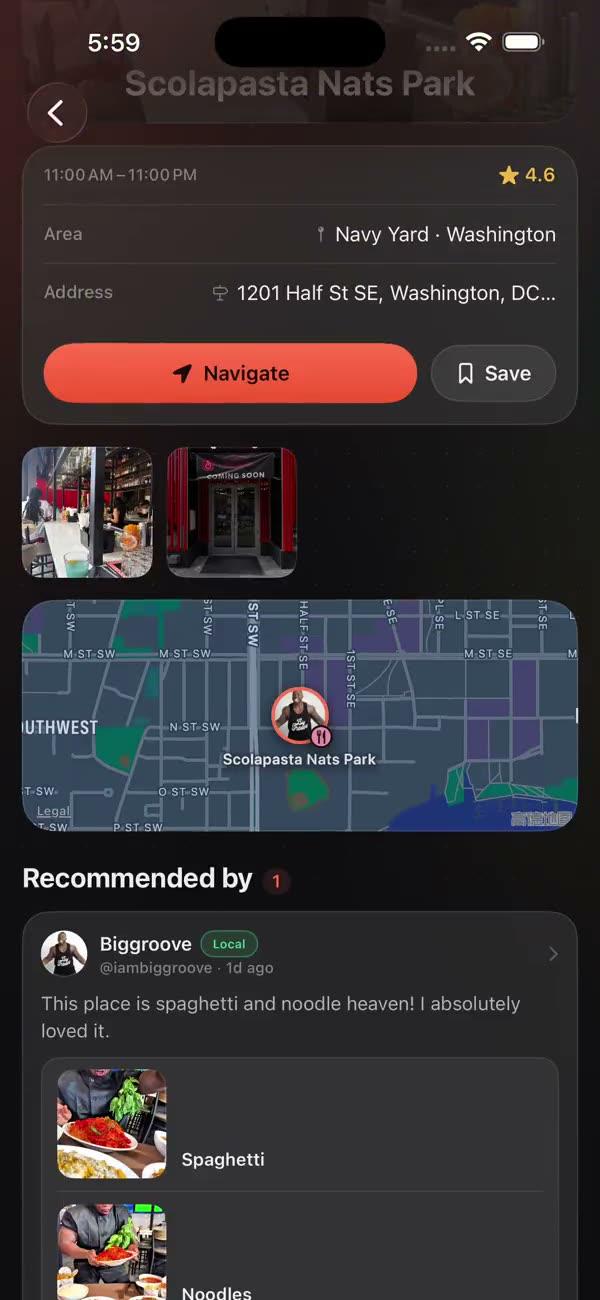
FreeMain screens
Settings View
Pre-built settings page with language switcher, share app, legal links, recommended apps, sign out / delete account with confirmation, and version info (iOS and macOS)
Free
Free with a ShipSwift account.
Copies a short instruction with your private download link. Paste it into your agent: it downloads the whole skill (the source code, the setup steps and the mistakes we already made for you) and builds the screen.
Works with
+70
What it does
Provides a drop-in, production-ready settings page for iOS and macOS apps — covering language switching, share app, legal links (Terms of Service, Privacy Policy), recommended apps showcase, account actions (sign out, delete account with confirmation dialogs), and version display — so you never have to build a settings screen from scratch.
What you get
- ✓512 lines of source code, ready to paste
- ✓Architecture
- ✓Implementation
- ✓Integration Checklist
- ✓Common Customizations
- ✓Known Pitfalls
settingspreferencesaccountSwiftUIconfigurationdelete accountrestore purchasesApp Review
Architecture
SWSettingView (NavigationStack)
  |
  |--- General Settings Section
  |       |--- Language Picker (English / Chinese via @AppStorage)
  |       |--- Share App (ShareLink with App Store URL)
  |
  |--- Legal Section
  |       |--- Terms of Service (Link)
  |       |--- Privacy Policy (Link)
  |
  |--- Recommended Apps Section
  |       |--- App links with icon images (labelWithImage helper)
  |
  |--- Account Actions Section
  |       |--- Sign Out (Button + confirmation alert)
  |       |--- Delete Account (destructive Button + confirmation alert)
  |
  |--- Version Info Section
          |--- App version + build number from Bundle
Key design decisions:
- Platform-specific views — separate
SWSettingView+iOS.swiftandSWSettingView+macOS.swiftfiles, sharing the same data model and configuration. - @AppStorage for language — persists the user's language preference across launches without a dedicated settings store.
- Confirmation dialogs — both sign-out and delete-account require explicit user confirmation to prevent accidental actions.
- Configurable constants — URLs and app links are declared as private
letproperties at the top of the struct for easy customization.
Integration Checklist
- Copy
SWSettingView+iOS.swiftandSWSettingView+macOS.swiftinto your Xcode project (e.g., under aSettings/orModule/group). - Update configuration URLs — replace
appStoreURL,termsURL, andprivacyURLwith your actual values. - Add app icon images — the recommended apps section references
ImageResourceassets (.smileMaxLogo,.fullpackLogo, etc.). Either add matching assets to your asset catalog or remove/replace the recommended apps section entirely. - Wire up account actions — replace the
signOut()anddeleteAccount()TODO stubs with your real authentication logic (e.g., callingSWUserManagerif you use the Auth module). - Embed in your app — add
SWSettingView()to yourTabViewor navigation hierarchy:
   TabView {
       Tab("Settings", systemImage: "gearshape") {
           SWSettingView()
       }
}- Language switching — if your app supports multiple languages, ensure other views also read from
@AppStorage("appLanguage")to stay in sync.
Known Pitfalls
- Image assets required — The recommended apps section uses
ImageResourcereferences (.smileMaxLogo,.fullpackLogo, etc.). If these assets are missing from your asset catalog, the build will fail. Either add placeholder images or remove the section. @AppStorage("appLanguage")does not changeLocale— This preference key is app-level only. It does not override the system locale. You need to read this value in your views and conditionally format dates, numbers, and strings accordingly.- Delete account is client-side only by default — The template stub does not call any backend API. If your app has server-side user data, you must implement proper backend cleanup (e.g., Cognito
deleteUser+ DynamoDB record removal) in thedeleteAccount()method. "Cleanup" also means stored files (photos in R2 / Storage — a cascade never deletes them, see infra-supabase-storage §5) and, for Sign in with Apple users, revoking the Apple authorization with a freshauthorizationCode(5.1.1(v)). If the confirmation promises "deletes your photos", the backend must actually delete them. - Force-unwrapped URLs — The recommended app URLs use
URL(string:)!. If a URL string is malformed, the app will crash. Verify all URL strings are valid before shipping. - Sign Out does not navigate — After signing out, the view remains on the settings screen. You typically need to observe the auth state at a higher level (e.g., in your root view) and switch to the login screen when the user becomes unauthenticated.
More in Main screens
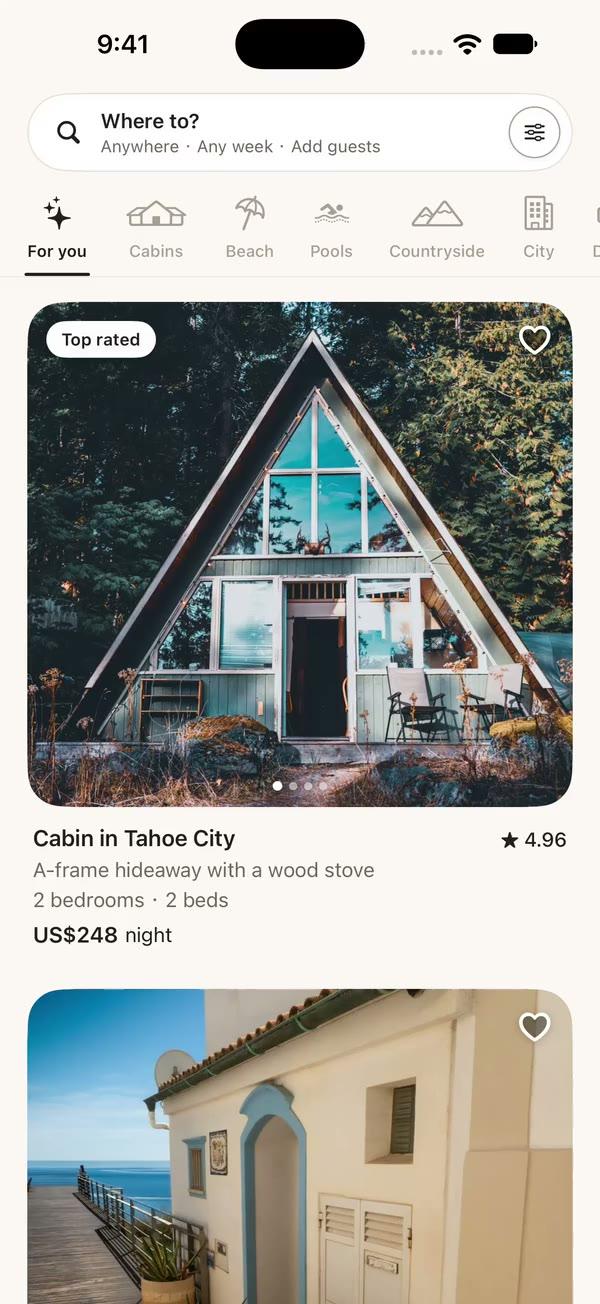
Stay explorer
ProBrowse places to stay: a search that opens into where, when and who, category tabs, and big listing cards whose photo zooms into the full listing.
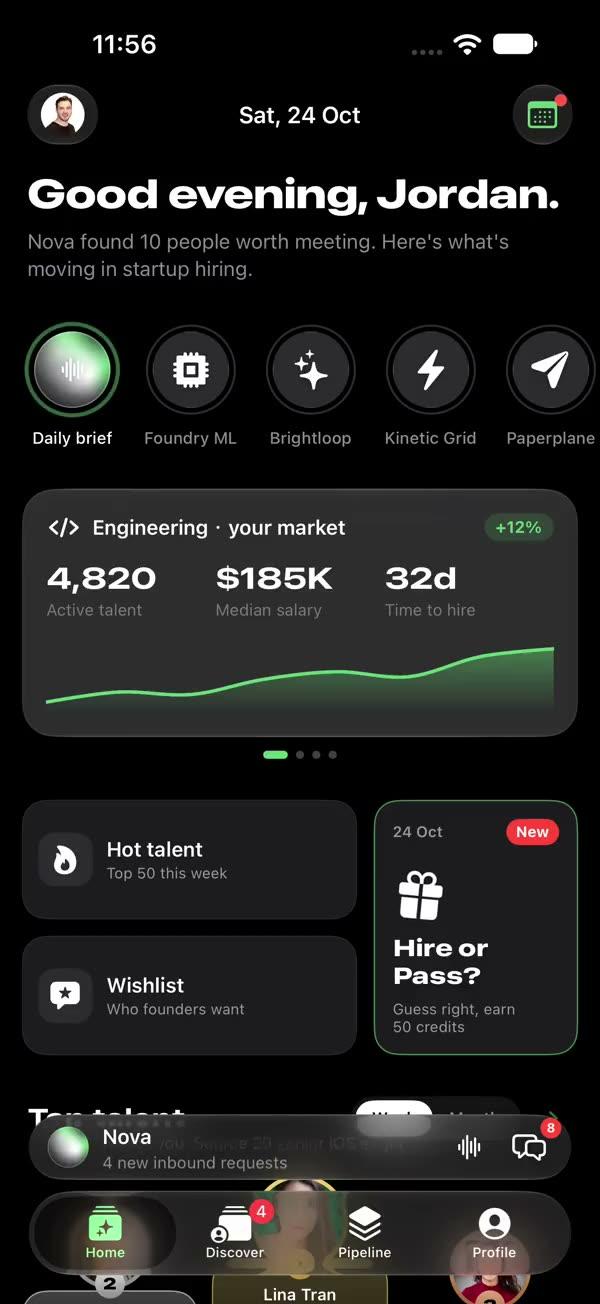
AI daily brief
ProA daily brief, live talent signals, and an AI agent that sources candidates for you in chat.

Physics sticker wall
ProHundreds of items as stickers with real physics. Filter by room and they fall, switch views, or spin them into a 3D sphere.
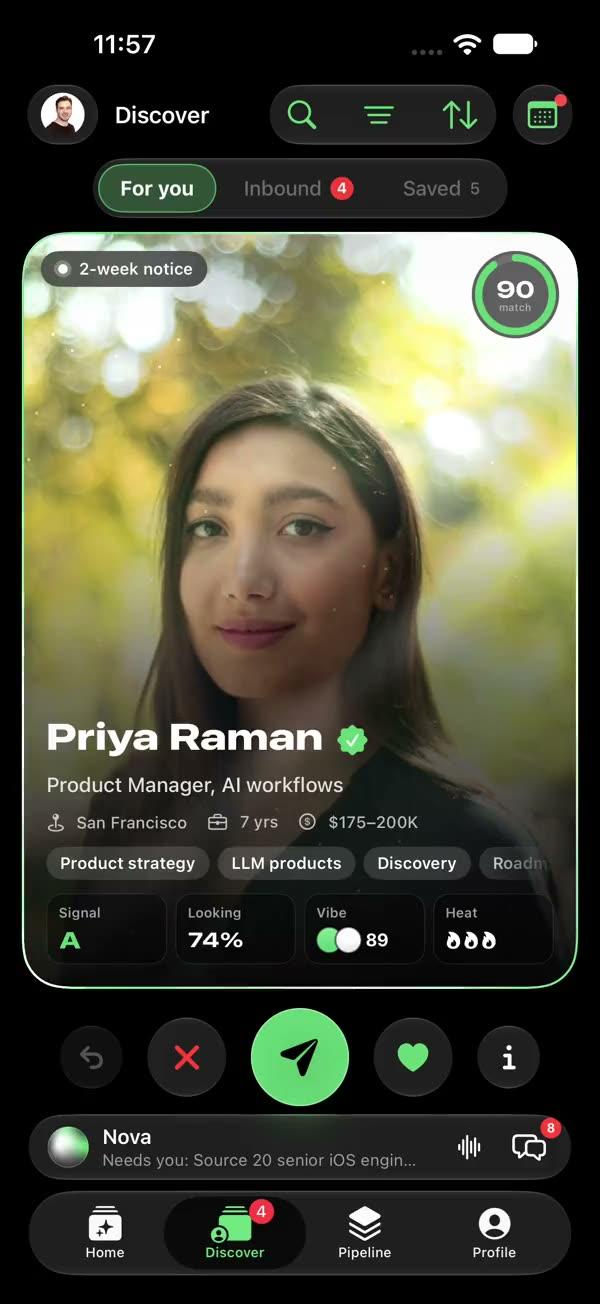
Swipe and shortlist
ProSwipe through candidates, shortlist the best, and send a note your AI agent drafts for you.
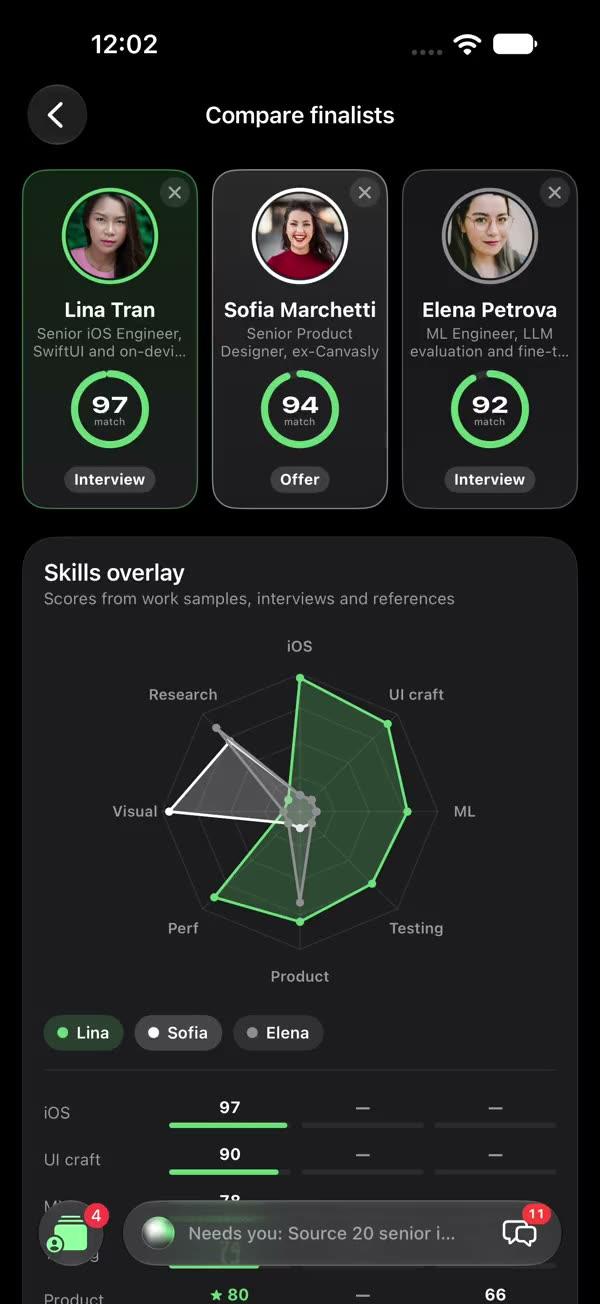
Side-by-side compare
ProCompare finalists side by side: a skills radar, scores and key facts. Swap people in and it all updates.
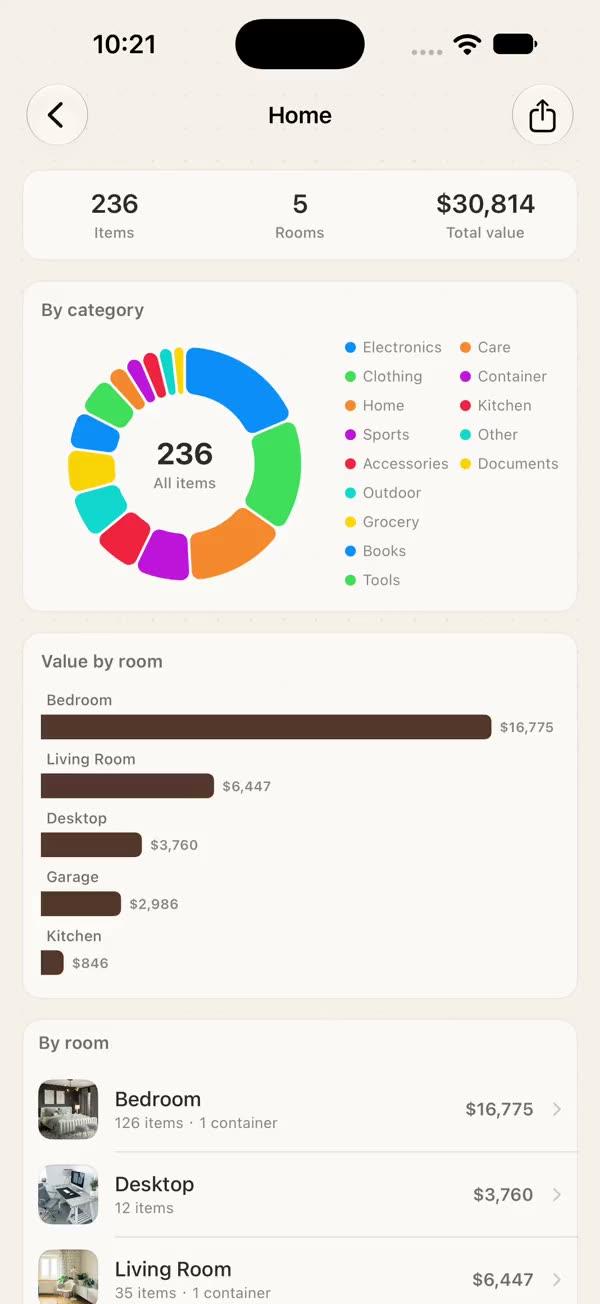
Totals dashboard
ProEverything you own, totalled by category and by room. Tap a room to drill in.
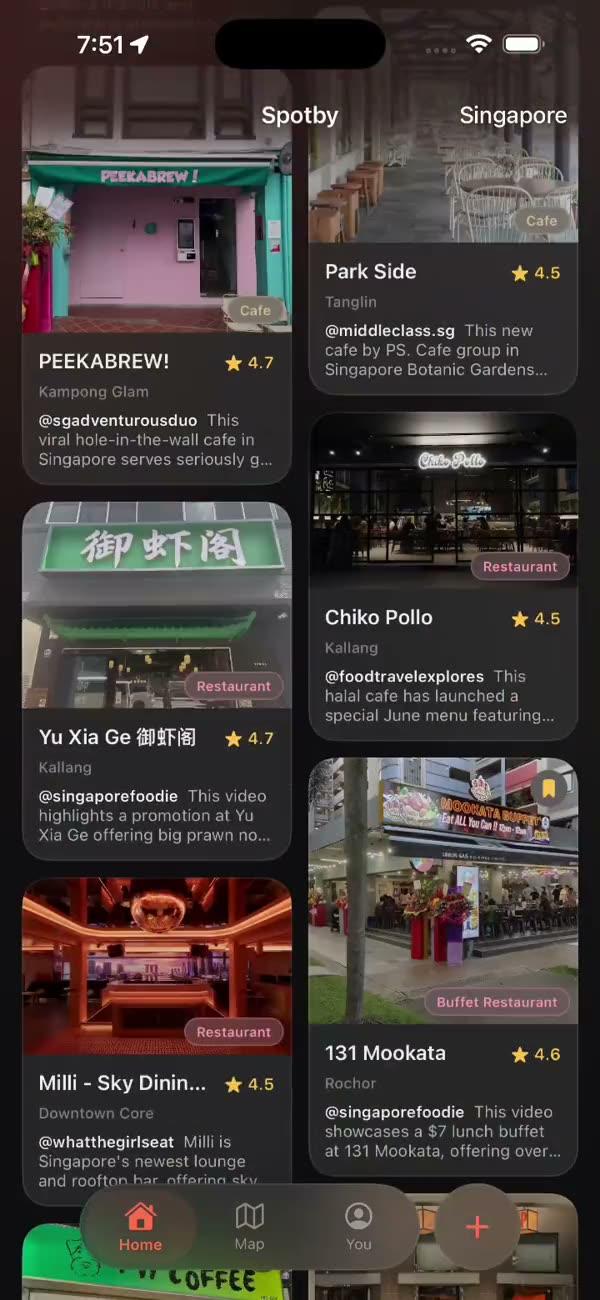

Creator city guide
ProTop picks on pinned order slips, creators' notes on a ring, and the place screen behind them.